Setup WordPress GDPR
After installing the GDPR Plugin we can continue setting up the basics. In your Admin Dashboard you should see the GDPR menu (see right). If not: Make sure the weLaunch Framework plugin is installed!
Here we can see the following options:
- General
- Popup
- Confirmation Email
- Contact DPO
- Privacy Center
- Cookie Policy
- Privacy Settings
- Unsubscribe
- Privacy Policy
- Forget Me
- Request Data Archive
- Integrations
- Pseudonymization
- Data Breach
- Advanced settings
- GDPR Menu in WordPress Backend
- Setup Pages
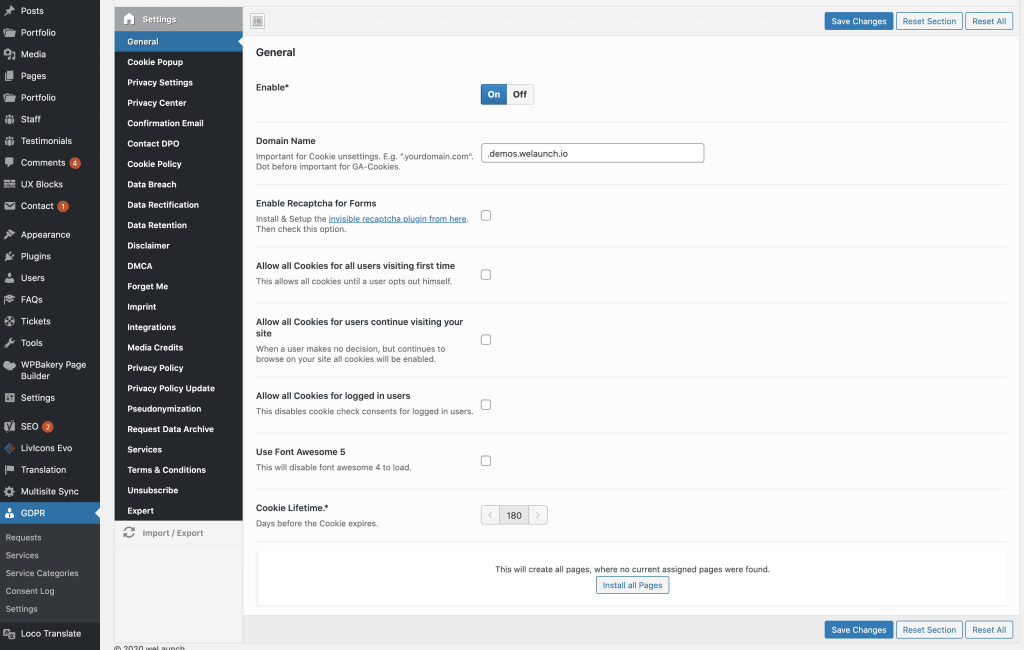
Before we start setting up, we need to create pages. Luckily our plugin can create all pages automatically. You just need to click on install pages in general settings. Then the privacy center with all sub pages and their shortcodes will be created.
Configure the GDPR Cookie Popup
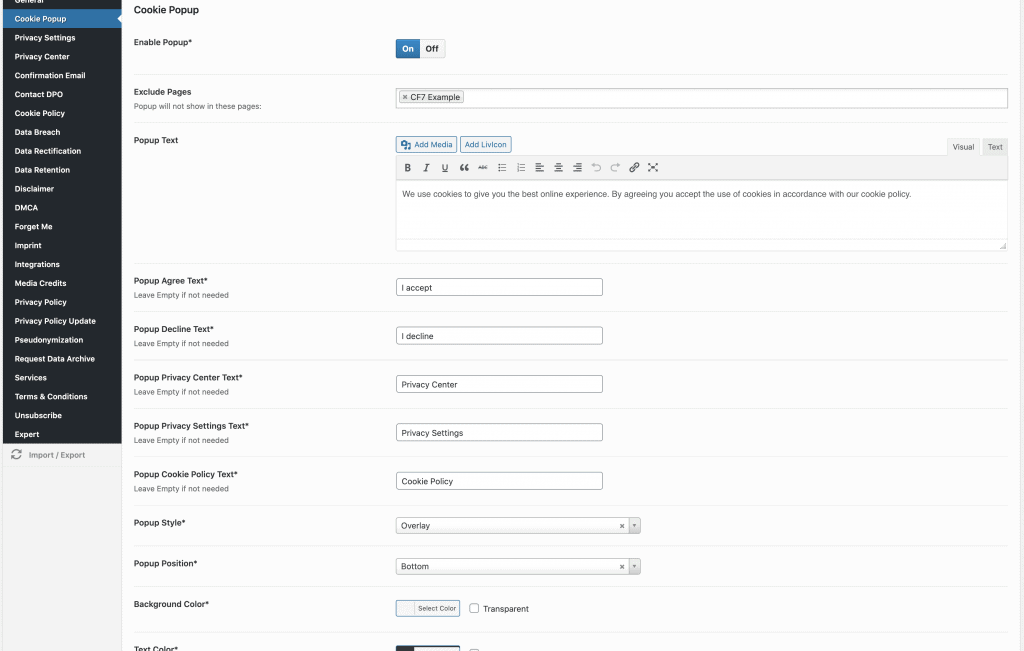
In the Cookie popup section you can define the look and feel of the modal, the user sees when he first visits your website. You can change texts, colors and choose one of three popup styles.
Setup privacy settings panel
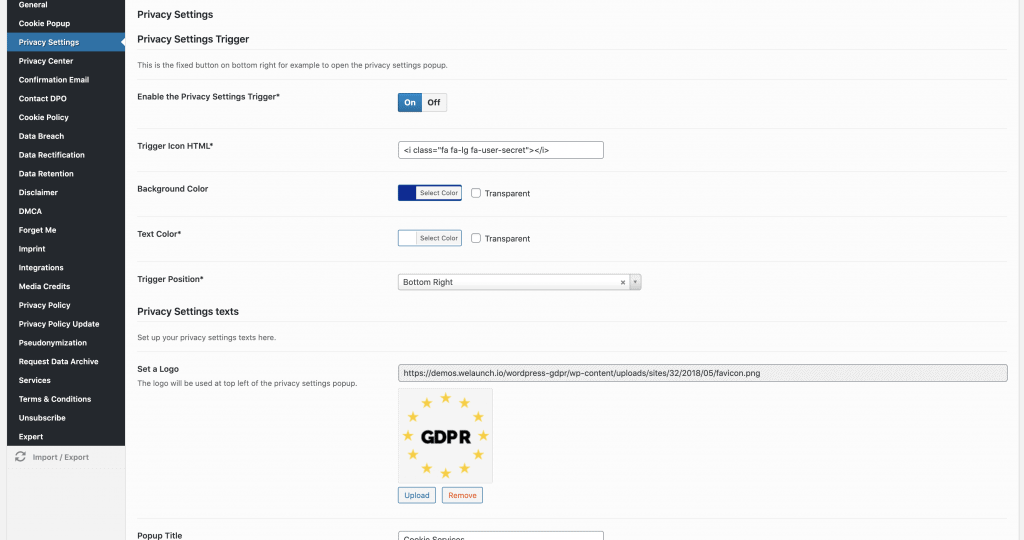
The privacy settings panel can be configured in this section. You can change / define the trigger position, icon and set a custom logo.
Privacy Center Options
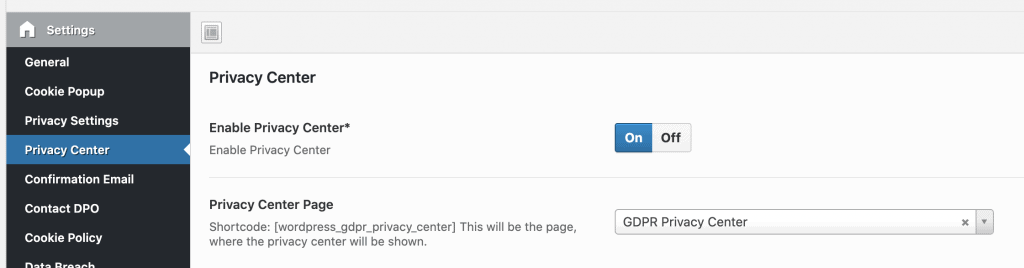
Privacy center page will, when you have clicked on install pages, be assigned automatically. But from here you can also turn it off and on or change the page.
Cookie Services
Each 3rd party service that requires you to add a script tag into your website should go into a GDPR service. This could be:
- Google Analytics
- Tag Manager
- HotJar
- Piwik
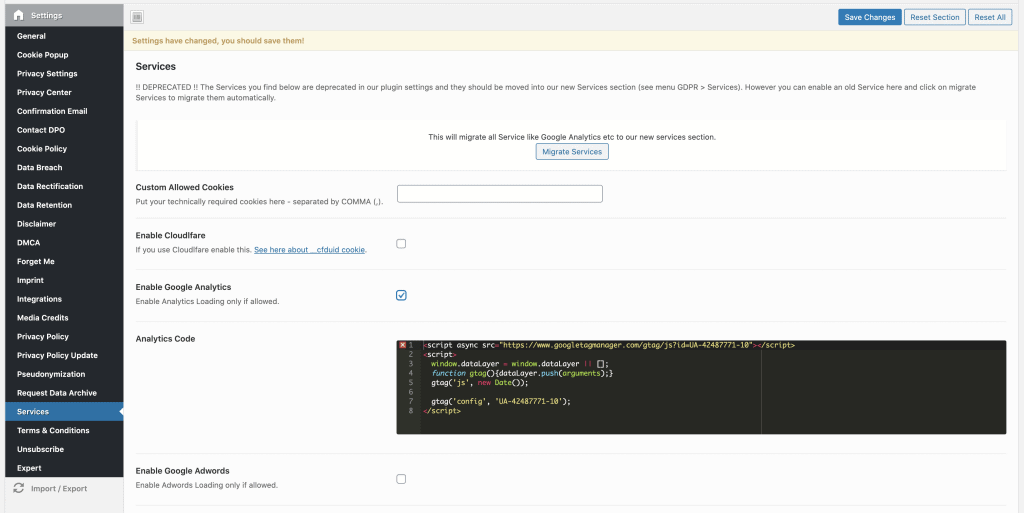
Before version 1.7 we had these integrated in our settings panel (see screenshot below). But you can still use these services panel to automatically setup GDPR services + categories. Simply enter the tracking codes and click on migrate services.
Learn more here about creating GDPR services & categories or watch this video:
Questions & answers (18)
HansMarch 20, 2023
Hello,
I would like to add a blue line to the top border of the cookie banner. How can I achieve this?
DanielMarch 21, 2023
You will need some custom CSS to style the cookie consent banner.
MunizJuly 7, 2022
Hi there!
You have Redux official link? Thanks you 🙂
DanielJuly 7, 2022
Redux is no longer required. Please use our weLaunch Plugin
Eli RosenOctober 15, 2021
Hi
1. How do we enable the pixelyoursite integration?
2. We use wprocket – will the plugin not disable the pixels from pixelyoursite?
3. is there an option to prevent clients from closing the popup without consenting?
DanielOctober 15, 2021
1) You simply create a service and enable pixelyoursite integration
2) Both work together with no problem
3) yes you can remove the close icon
John ConnorApril 11, 2021
Thanks Daniel, but the problem is that the popup shows only 2 button options to close the popup, and both of them modify his custom selection of allowed cookies:
DECLINE ALL SERVICES – ACCEPT ALL SERVICES
DanielApril 12, 2021
Please submit a ticket through our website.
John ConnorApril 9, 2021
Question about Cookie PopUp – Preferences:
We enabled the cookies popup. And then enabled the prefences popup, where the visitor can enable/disable specific cookies. The visitor enables some cookies and disables other ones.
Then, at the bottom of the popup, there are only 2 buttons:
DECLINE ALL SERVICES – ACCEPT ALL SERVICES
But these buttons override the selected user cookies: It declines ALL of them or accepts ALL of them.
How can we put there a button to just “SAVE” the preferences he choosed? (some cookies enabled, some cookies disabled)
Thank you!
DanielApril 10, 2021
There is no need for a save button, because after changing a service it will save automatically.
John ConnorApril 11, 2021
If I hide with CSS the 2 buttons, and CSS style the “X Close” to look like a button, then I have another issue: When I navigate to another page, the main modal popup to allow cookies is prompted again. It only stops appearing when I click on DECLINE ALL SERVICES or ACCEPT ALL SERVICES (then it finally creates the wordpress_gdpr_cookies_allowed cookie).
Thanks for your help.
malexandruMarch 31, 2021
Hi,
is it possible to rename or add a section in this menu? For example, beside Cookie policy and Terms and conditions i need to add a Return Policy section. Is it possible? Thanks
DanielMarch 31, 2021
We will put that into a next update.
Simon FerreiraSeptember 24, 2020
Hi there!
What Redux Framework plugin do you recommend?
Daniel BarenkampSeptember 24, 2020
There is only one redux at wp repository 🙂
Simon FerreiraSeptember 24, 2020
This one?
https://wordpress.org/plugins/redux-framework/
Daniel BarenkampSeptember 25, 2020
Yes correct 🙂
Simon FerreiraSeptember 25, 2020
Ok. Thank you!